You may host and manage websites and web applications with the aid of Internet Information Services (IIS), a web server function in Windows Server. It is a solid option for handling and providing web content because it is compatible with several web technologies and offers features for growth, performance, and security.

Internet Information Services (IIS): What is it?
Microsoft's Internet Information Services (IIS) web server software is compatible with Windows Server. Websites, web apps, and other online services can be hosted and managed with its assistance. IIS is adaptable to diverse kinds of web content since it works with a variety of web technologies, including HTML, ASP.NET, and PHP. It provides security, speed, and growth capabilities to help you efficiently set up and manage your web environment. You can efficiently manage applications, provide web pages, and manage internet traffic with IIS.
Internet Information Services (IIS) deployment
Step 1. Open the Server Manager.
Step 2. Click on "Manage".
Step 3. Then select "Add Roles and Features".
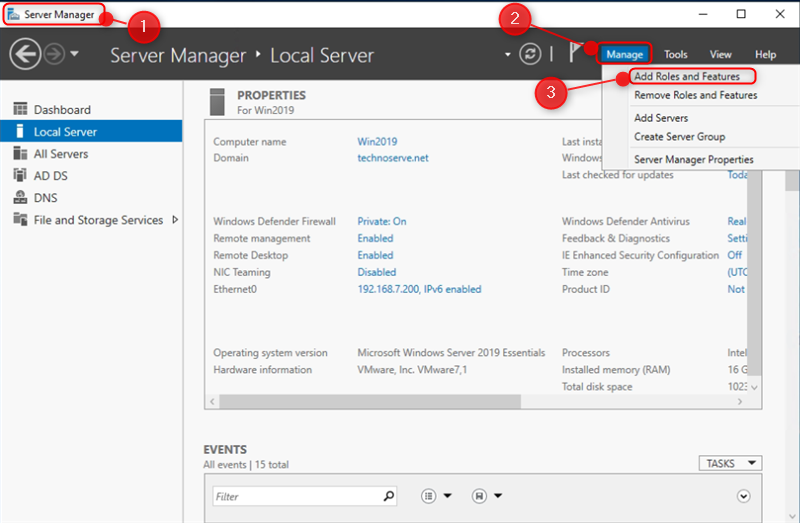
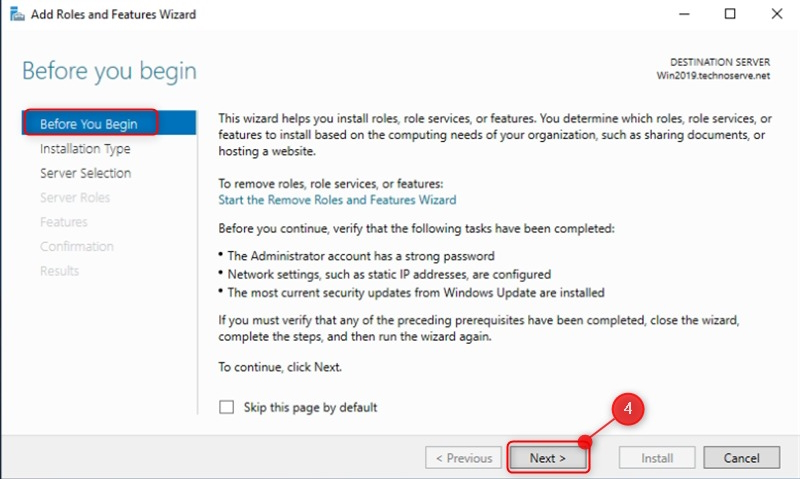
Step 4. On the "Before you begin" screen, click "Next."
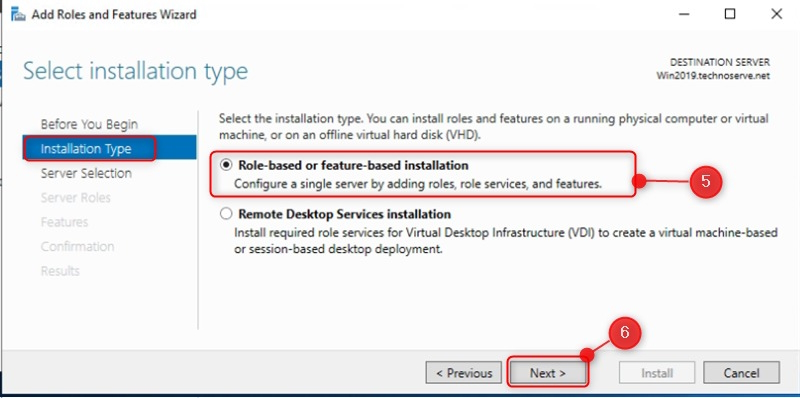
Step 5. Choose "Role-based or feature-based installation"
Step 6. And then click "Next."
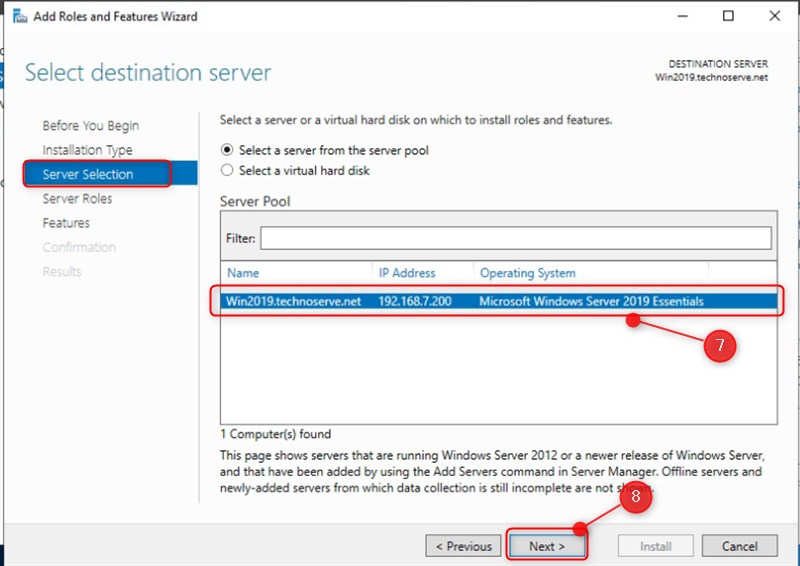
Step 7. Choose the appropriate server from the server pool.
Step 8. And then click "Next".
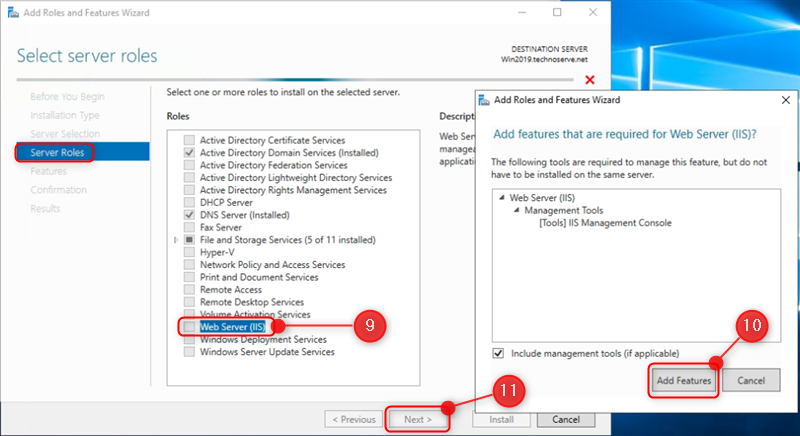
Step 9. Select the server role "Web Server (IIS)."
Step 10. If a box appears asking to add required features, click "Add Features."
Step 11. And then click "Next."
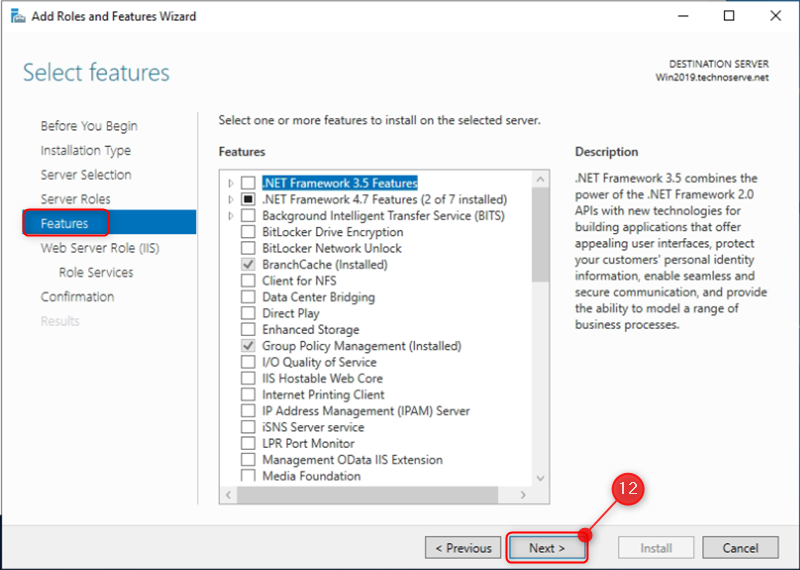
Step 12. Select the features screen, you can choose extra features if you need them, and then Click "Next".
Step 13. Web Server Role (IIS)" screen, review the information about IIS and click "Next".
Step 14. Select role services, anything you want to install, and Make sure to select important services.
Step 15. Then Click "Next"
When setting up the IIS (Internet Information Services) web server role, there are some important services you need to choose to make sure the web server works properly.
Web Server: Common HTTP Features
Static Content
Default Document
Directory Browsing
HTTP Errors
HTTP Redirection (if needed)
Application Development
ASP.NET (for .NET applications)
.NET Extensibility
ISAPI Extensions
ISAPI Filters
Management Tools
IIS Management Console
IIS Management Scripts and Tools
Management Service (for remote management)
Performance
Static Content Compression
Dynamic Content Compression
Security
Request Filtering
Windows Authentication (if needed)
Basic Authentication (if needed)
URL Authorization
Step 16. Review and click "Install".
Step 17. After installation is finished, click "Close".
Verify the IIS server role Installation
- open a web browser and enter http://localhost.
- confirming that IIS is running.