June 3, 2026 07:56 by
 Peter
PeterWe can parse many kinds of logs with the aid of Log Parser Studio. The primary focus of this course will be on parsing IIS logs. There are two types of Log Parser software: one that just uses the command prompt and the other that supports a graphical user interface.

Installation
Kindly find the link for Log Parser Studio.
Below is the sample query for Log Parser with GUI to get the output from IIS logs for a URL and other data like [MAX, MIN, AVG] – Response Time in mili seconds and hits.
SELECT cs-uri-stem as URL,
MAX(time-taken) As Max,
MIN(time-taken) As Min,
Avg(time-taken) As Average,
Count(1) as Hits
FROM '[LOGFILEPATH]'
GROUP BY URL
ORDER BY Average DESC
Below is the sample query to run in Log Parser with the command prompt version.
Logparser -i: iisw3c “ SELECT cs-uri-stem as URL,
MAX(time-taken) As Max,
MIN(time-taken) As Min,
Avg(time-taken) As Average,
Count(1) as Hits from D:\test.log GROUP By URL ORDER BY Average DESC TO D:\result.csv” –o : csv
Usage details Log parser studio
The landing screen of Log Parser Studio is given below.
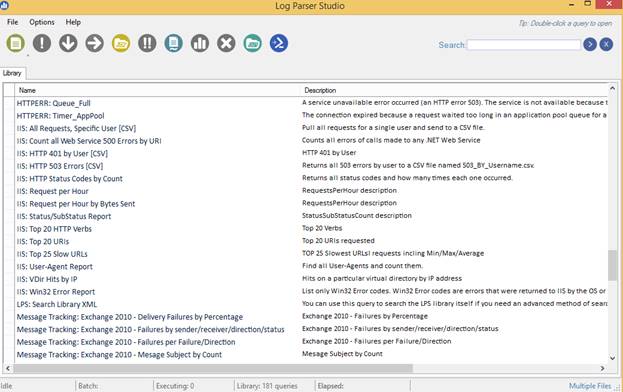
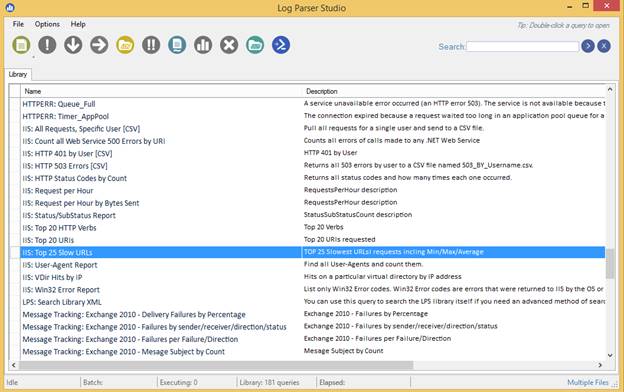
As we are interested in parsing IIS logs, so select IIS-Top25 slow URLs.
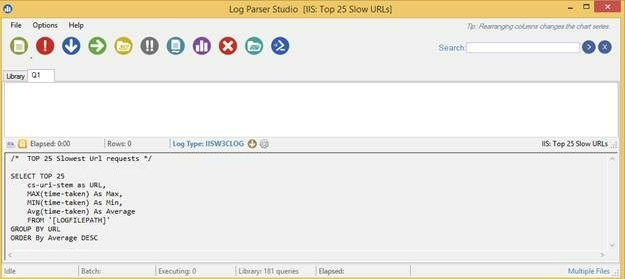
The query with all the details will be shown to the user.
Now, we need to choose the IIS logs file. Click the Choose log files icon.
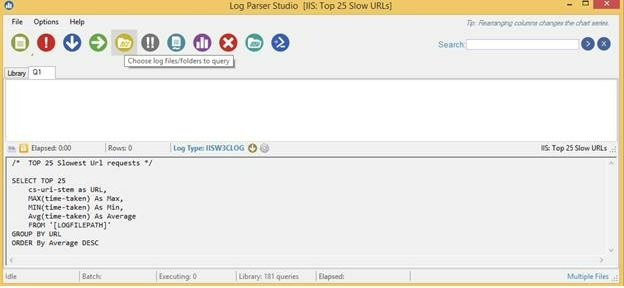
The dialog box with the options will be shown, where we have to select the individual log files or the folder. Now, we need to click the icon to execute an active query.
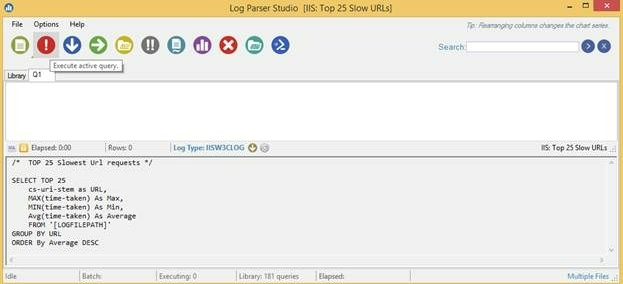
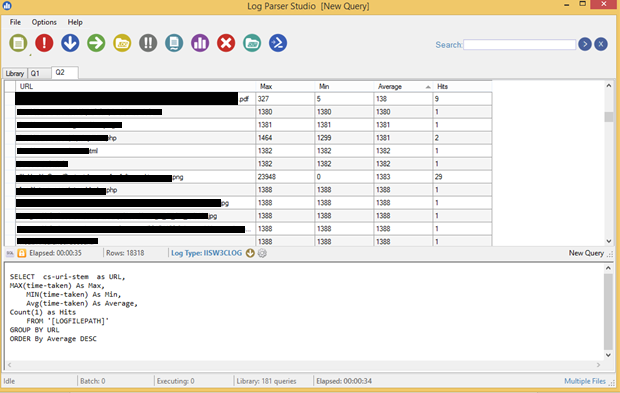
Below is the screenshot of Log Parser Studio with the results. The data for Max, Min, and Average refers to Response Time in mili seconds. We can copy data or export the data, as required.