
June 11, 2026 09:08 by
 Peter
PeterLet's start by getting a summary of both.

Physical route
This is the path that IIS actually finds the file.
The virtual route
When a file is pointed to from outside the IIS application folder, this is the logical route to access it.
Let's use a virtual directory in the IIS default website to display this image from the hard drive "E:."
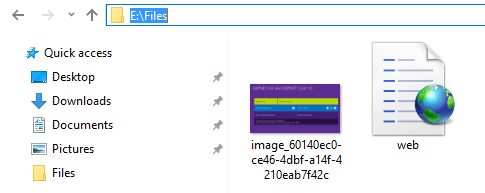
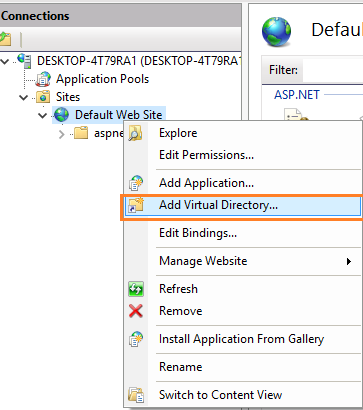
Add Virtual Directory
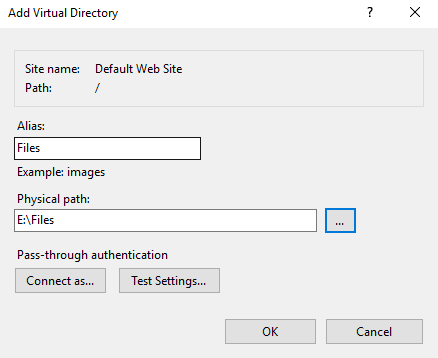
Here, we need to provide an alias for the physical path.
Physical Path - E:\Files
Virtual Path - http://localhost/Files/
File Name - image_60140ec0-ce46-4dbf-a14f-4210eab7f42c.png
Full Path - http://localhost/Files/image_60140ec0-ce46-4dbf-a14f-4210eab7f42c.png
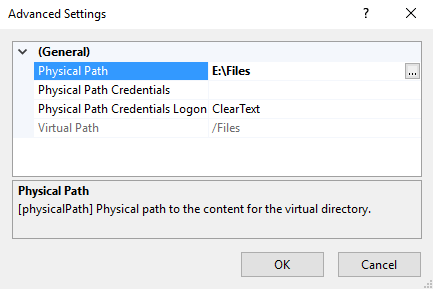
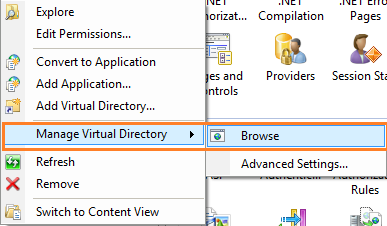

Let’s enable the Directory Browsing.
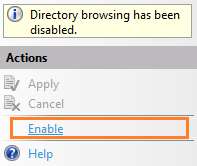
By default, this is disabled for security reasons.
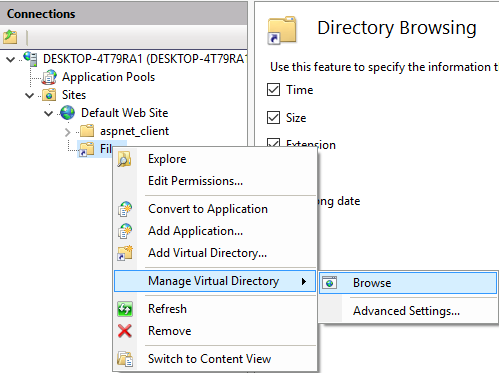
Here, we can see the files of the folder that is in E Drive. Click on the file name. It will load the file which is in the outer part of IIS application folder. Thanks, hope this will help.