Do you want to utilize Application Insight to collect telemetry from your corporate application running in an on-premises or cloud environment? Configure your server and begin using Application Insights with a few easy steps.

Follow the below steps now:
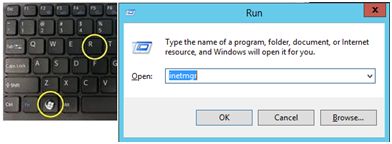
Step 1: Open IIS manager by pressing “Windows + R” button, type in “Inetmgr” and click OK.
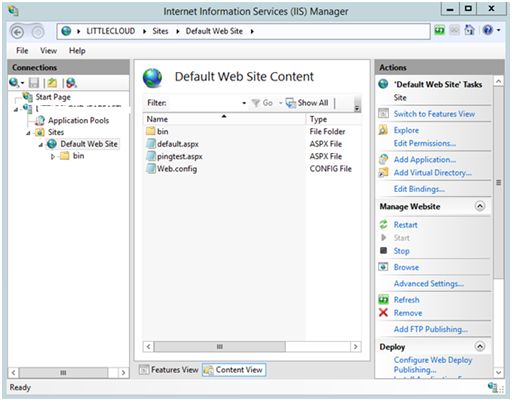
Step 2: In IIS Manager, click on “Default Web Site” and “Content View” at the bottom to verify the files
Step 3: To configure this server to use Application Insight, we would be installing the “Application Insights Status Monitor” on the server. Click on the link to download and install it.
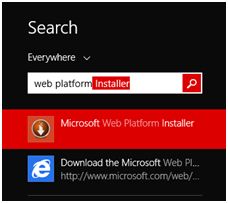
You can also install it from “Web Platform Installer”. Open the WebPI from Windows search by pressing “windows” button and just type “Web platform Installer”.
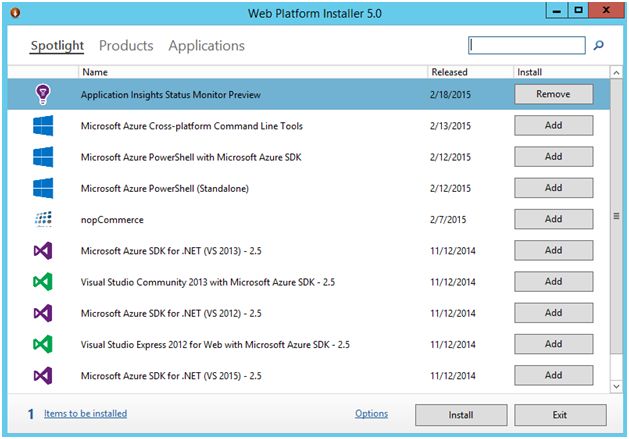
Step 4: In the WebPI window, type “Application Insights” in the server option. Select “Application Insights Status Monitor Preview”, click on “Add” and “Install”.
You can also install it from the local path we saved already.
“C:\hfl\HOL-ApplicationInsight\ApplicationInsightsAgent.msi”
After installing, launch the “Application Insights Status Monitor” and “Sign In” with the Azure account provided to you:
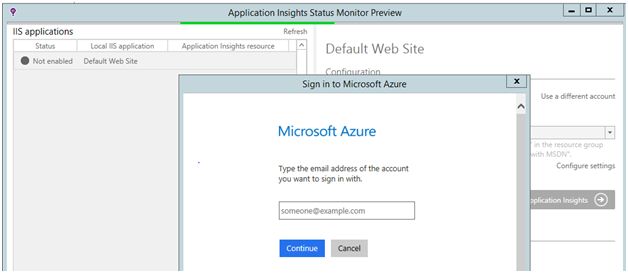
Step 5: After signing in, the “Application Insights Status Monitor” will show the list of Application Insight Resources. Select the resource you created in Lab-1 and click the button “Add Application Insights”:
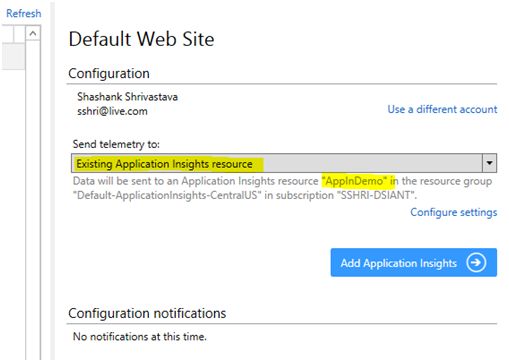
It will take a few seconds to configure the website to use “Application Insights” and will show a prompt in order to restart IIS:

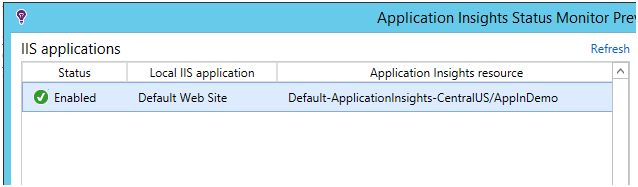
After restarting IIS, the website status will turn to “Enabled” and it will start logging telemetry data to “Application Insights”.
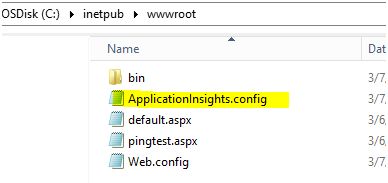
The Application Insights Status Monitor agent places a “ApplicationInsights.config” configuration file under your website directory and adds some configuration settings in Web.config file:
Step 6: Now, browse the following URL in browse tabs to start logging some telemetry data:
http://localhost/default.aspx
http://localhost/pingtest.aspx
Now, switch to “Application Insight status monitor” and click on “Open in Microsoft Azure Portal”.
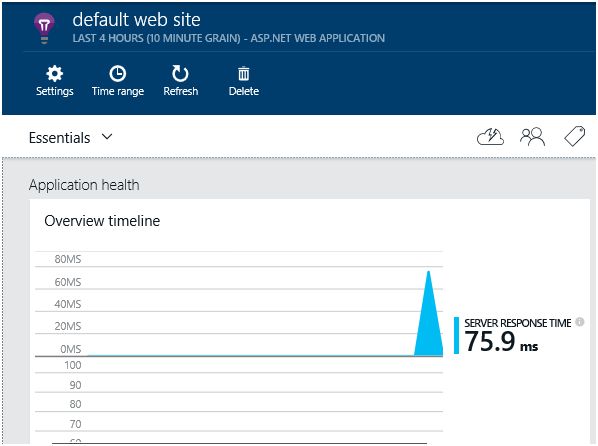
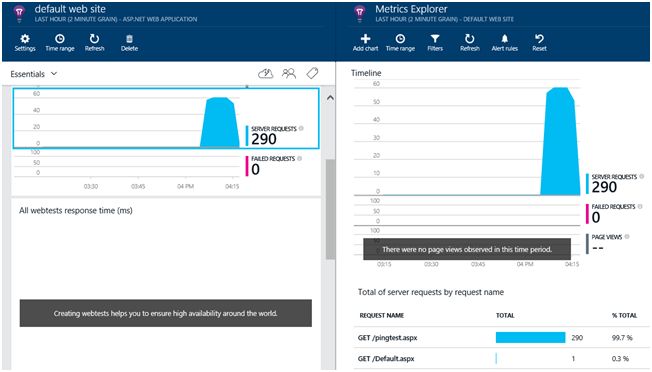
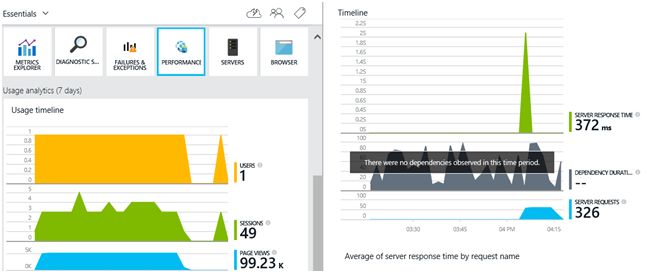
Step 7: Login to the portal and it will open the Application Insights resource in which we are logging the server’s telemetry data:
Summary
This Application Insight will help you to track the performance and usage of the Web Application that has been hosted on Microsoft Azure Service. You can also track adoption and usage with the pages, events, and metrics. We will be working with Application Insights and attaching it towards existing ASP.NET Web applications in future posts.